Sabtu, 07 November 2015

Tutorial to make timeline with timetoast

Hi everybody. ^_^
Today I will write the steps to make timeline with timetoast
OK. Check this out:
1. Googling timetoast

2. Choose sign in
3. This is the beginning view of timetoast
 
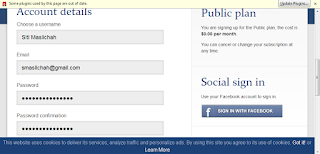
4. Click create your account and choose public. After that write your identity and then click create account on the bottom. 


5. Choose dashboard beside public timelines. This is the time for you to create timeline.

6. In title column, write the title of your timeline
7. In public status column, choose public
8. In category column, choose category of your timeline


9.  There are 3 menu on the bottom of timetoast:
a. Add event: is used to create event 
b. Add timespan: is used to make your chronological timeline
c. Edit Title & Picture : is used to change your picture of timeline title
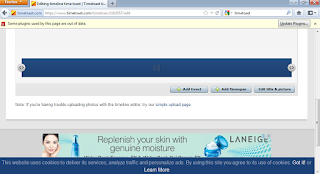
10.  Add Event


11.  Add Timespan


12. Edit Title & Picture
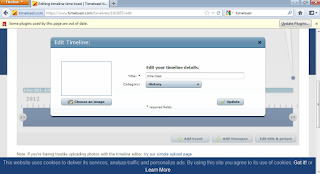
You can add the event of your timeline by clicking "Add Event".
This is the example of my timeline


You can check it in here
or in here

you can also see the video of timeline tutorial in this video
Minggu, 21 Juni 2015

Tutorial and Example of The Masher-Hot Potatoes

The Masher
 

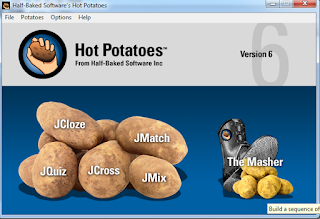
1. Open Hot Potatoes program, Click The Masher.
2. Choose add files

3. Choose the JCloze, Jquiz, JCross, JMatch and JMix that you made.
4. Klik OK to all.

5. Click build unit, Click Yes


6. Finally you can look all exercises that you have made.

 
This is our result, you can download it in https://db.tt/oRNhQKtp

Tutorial and Example of JMix-Hot Potatoes

JMix


1. Open Hot Potatoes program, Click JMix.
2. In Title column, write your title of your exercise, for example “Holiday-Arrange the sentence”
3. In main sentence column, write the sentence that you want to arrange, Jumble it and write word by word
4. In Alternate Sentences column, Arrange the jumble words into good sentences. You can write more than one answer.
5. After you finish it, save twice as same as you save JCloze. Save in the same folder
6. Your JMix exercise will be like this;


7. To set the background color and time, do the same way as JCloze.

This is our result, you can download it in https://db.tt/PLyKjKxl


Tutorial and Example of JMatch-Hot Potatoes

JMatch


1. Open Hot Potatoes program, Click JMatch.
2. In Title column, write your title of your exercise, for example “Holiday-Match the word”,

3. In the left side, write the words
4. In the right side, write your word that you want to match with left side. Don’t jumble it.
5. After you finish it, save twice as same as you save JCloze. Save in the same folder
6. Your JCross exercise will be like this

7. To set the background color and time, do the same way as JCloze.

This is our result of JMatch, you can download it in https://db.tt/gKligYIx


Tutorial and Example of JCross-Hot Potatoes

JCross


1. Open Hot Potatoes program, Click Jcross.
2. In Title column, write your title of your exercise, for example “Holiday-JCross”

3. Write your answer of crossword, you can write down or across.
4. Click Add clue in the left side (Key picture)
5. Your JCross will be shown like this

6. Add the clue to guide your students to answer your crossword
7. Make more crosswords. 

8. After you finish to create crossword, save twice as same as you save JCloze. Save in the same folder.
9. Your JCross exercise will be like this

10. To set the background color and time, do the same way as JCloze.

This is our result of JCross, you can download it in https://db.tt/ptcMvzGz
 
luvne.com ayeey.com cicicookies.com mbepp.com kumpulanrumusnya.com.com tipscantiknya.com